How To Effectively Stream YouTube Video For Google Cardboard – Android


To stream a 360 video from YouTube in an Android app and display it in a compatible format for Google Cardboard, you’ll need to use the YouTube Android Player API for streaming the video and a library for displaying 360 videos in VR, such as Google VR SDK or a third-party library like VR Video View.
By following the steps below and using the provided resources, you should be able to stream a 360 video from YouTube in your Android app and display it in a Cardboard-compatible format.
Here’s a detailed guide on how to achieve this
1) Set up the YouTube Android Player API:
- First, make sure you have an API key for the YouTube Data API v3. You can obtain one by following the instructions here: Get API Key.
- Add the YouTube Android Player API dependency to your app’s
build.gradlefile:
groovy Copy code
dependencies { implementation 'com.google.android.youtube:youtube-android-player:10.0.5' }
Initialize the YouTubePlayerView in your activity’s layout XML file:
xml Copy code
<com.google.android.youtube.player.YouTubePlayerView android:id="@+id/youtube_player_view" android:layout_width="match_parent" android:layout_height="wrap_content"/>
In your activity or fragment, initialize the YouTubePlayer and load the desired video:
javaCopy code
YouTubePlayerView youTubePlayerView = findViewById(R.id.youtube_player_view); youTubePlayerView.initialize("YOUR_API_KEY", new YouTubePlayer.OnInitializedListener() { @Override public void onInitializationSuccess(YouTubePlayer.Provider provider, YouTubePlayer youTubePlayer, boolean b) { // Load the desired video youTubePlayer.loadVideo("VIDEO_ID"); } @Override public void onInitializationFailure(YouTubePlayer.Provider provider, YouTubeInitializationResult youTubeInitializationResult) { // Handle initialization failure } });
Replace "YOUR_API_KEY" with your actual YouTube API key and "VIDEO_ID" with the ID of the 360 video you want to stream.
2) Display the 360 Video in Google Cardboard:
- You can use the Google VR SDK or a third-party library like VR Video View to display the 360 video in VR mode.
- Follow the instructions provided in the documentation of the chosen library to integrate it into your app and display the video in a Cardboard-compatible format.
- Ensure that the video is displayed side by side for VR viewing.
3) Test and Debug:
- Test your app on a physical device with Google Cardboard or an emulator with VR support to ensure that the video is streaming correctly and displayed properly in VR mode.
4) Optimization:
- Optimize your app for performance by handling memory efficiently and minimizing network usage, especially when streaming high-resolution 360 videos.

Here are some additional points to consider:
1) 360 Video Resolution and Format:
Ensure that the 360 video you want to stream is in a compatible format and resolution for VR viewing. YouTube supports various resolutions for 360 videos, but higher resolutions may require more bandwidth and processing power.
2) User Interaction:
Consider adding features for user interaction, such as pausing, resuming, and seeking the video playback. You can use the methods provided by the YouTube Player API for controlling the video playback.
3) Error Handling:
Implement error handling mechanisms to gracefully handle situations such as network errors, API initialization failures, or video playback errors. Provide informative error messages to the user and suggest possible solutions.
4) Permissions and Security:
Ensure that your app requests the necessary permissions, such as internet access permissions, for streaming the video content. Also, follow best practices for handling sensitive user data and secure API key storage.
5) Performance Optimization:
Optimize your app’s performance by implementing techniques such as lazy loading of resources, caching frequently accessed data, and optimizing network requests. This will help improve the overall user experience and reduce battery consumption.
6) User Interface Design:
Design a user-friendly interface for your app, with intuitive controls for navigating the VR environment and interacting with the video content. Consider adding features like a play/pause button, a progress bar, and volume controls.
7) Compatibility and Device Support:
Test your app on a wide range of Android devices to ensure compatibility and performance consistency across different screen sizes, resolutions, and hardware configurations. Consider providing fallback options for devices that do not support VR features.
8) Documentation and Support:
Document the integration process and provide clear instructions for other developers who might work on the project in the future. Consider creating a README file with setup instructions, code samples, and troubleshooting tips.
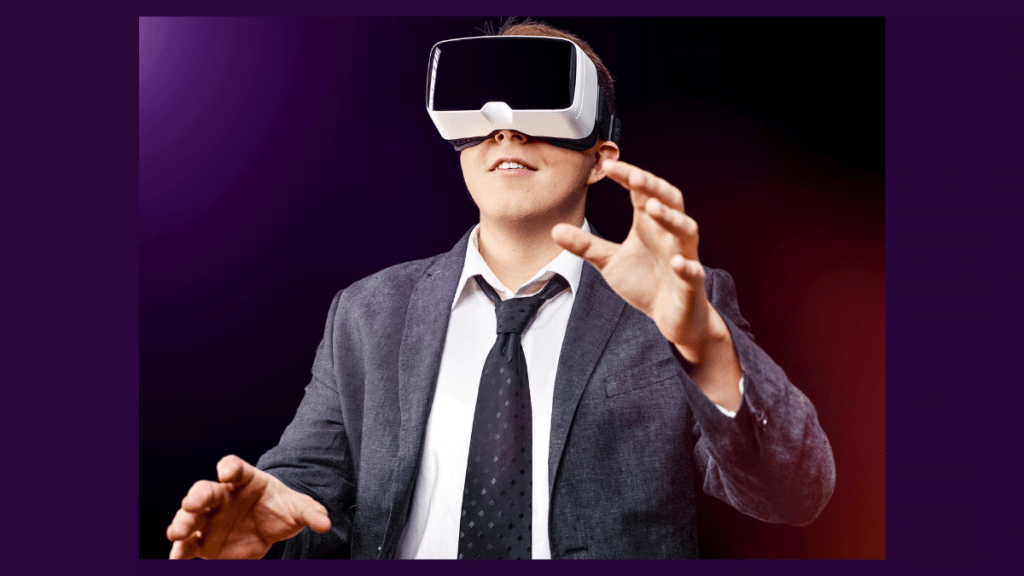
Let’s hope that by addressing these additional aspects, you can enhance the functionality, usability, and reliability of your Android app for streaming 360 videos from YouTube in a Cardboard-compatible format.
Source Links:
Engage with these articles to fuel your intellectual growth and inspire your thoughts.
Best AI-Animated Video Software ClipsReel AI
Elevate Your Online Courses with Skool: The Best New Course Creation and Hosting Platform.
Affordable Immersive Tech: VR and AR Headsets That Rival Apple Vision Pro
Cheaper VR and AR Options: Quality Headsets That Don’t Cost as Much as Apple Vision Pro
Skool vs. Kajabi: A Comparative Analysis – You Make The Choice
5 New Cheaper VR and AR Options: Quality Headsets That Don’t Cost as Much as Apple Vision Pro